
How to Accept Bitcoin Lightning Payments with No KYC: A Complete Self-Custody Setup Guide
Total time: ~45-60 minutes active setup + 1-2 hours waiting for Bitcoin confirmations
Most payment processors require identity verification, bank accounts, and business registration before you can accept a single dollar. Bitcoin Lightning payments work differently — funds go straight to your wallet, settle in seconds, and no third party can freeze or reverse them.
This is a complete self-custody setup: you own your private keys, your node, and your funds from the moment a payment arrives. No custodian holds your money between sale and payout.
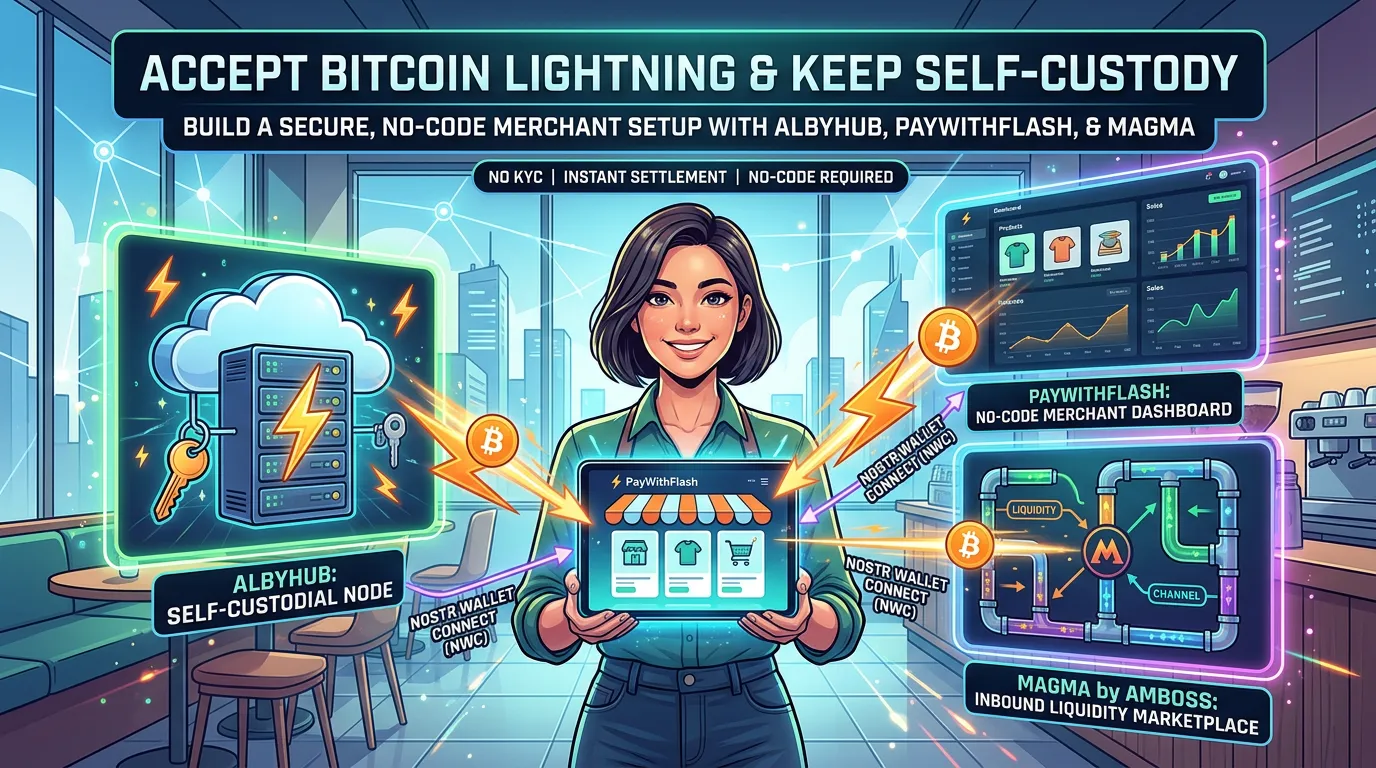
This guide uses three tools:
- AlbyHub — A self-custodial Lightning node you control, hosted in the cloud.
- PayWithFlash — A no-code merchant dashboard for creating stores, payment links, and product pages.
- Magma by Amboss — A Lightning liquidity marketplace that handles recurring inbound channel purchases so your store can always receive payments.
No coding required. You just need an email address to get started.
What Is Self-Custody — and Why Does It Matter for Merchants?
When you accept credit cards or use a payment processor like Stripe or PayPal, your money is held by that company until they decide to release it. They can freeze it, reverse it, or close your account without warning.
With a self-custody Lightning setup, you are the payment processor. Your private keys live on your node. When a customer pays, the sats land directly in your wallet — no intermediary, no hold period, no approval required. This is what "not your keys, not your coins" means in practice.
What Is Lightning — and What Is Inbound Liquidity?
The Bitcoin Lightning Network is a payment layer that enables instant, near-zero-fee transactions. For merchants, it means:
- Payments settle in under a second
- Fees are a fraction of a percent (often less than 1 sat)
- No chargebacks — Lightning payments are final
Inbound liquidity is the one technical concept worth understanding: to receive Lightning payments, you need an open channel with available receiving capacity. Think of it like a tube — payments can only flow in if there's room. Magma ensures you always have enough room by purchasing new channels for you on a monthly schedule.
What You'll Need Before Starting
- An email address (no identity verification required)
- Some Bitcoin (~$20-50 worth) to fund your first channel
- About 45-60 minutes
💡 What connects everything: These tools communicate via Nostr Wallet Connect (NWC) — an open protocol that lets merchant apps talk to your Lightning node without ever handling your private keys. When you paste an NWC connection string into Flash, you're giving it permission to request invoices from your node. That's it. Your keys stay on your node.
Step 1: Set Up AlbyHub (Your Self-Custodial Lightning Node) ⏱ ~15 min active + up to 60 min wait
AlbyHub is where your Bitcoin lives. It's your personal Lightning node, hosted in the cloud so it stays online 24/7 without you needing to run a server. You hold the private keys — Alby's servers just keep the software running.
👉 Sign up with this link for a free inbound Lightning channel from Magma:
1.1 Create Your Account (5 min)
- Click the link above and select "Alby Cloud" — this is the managed cloud option and the easiest starting point.
- Enter your email address and create a password.
- Follow the setup wizard through to completion.
1.2 Save Your Seed Phrase — Critical Step (2 min)
AlbyHub will display a 12-word seed phrase during setup. This phrase is the master backup of your entire wallet — it's the only way to recover your funds if you lose access to your account.
- Write it down on paper. Not in a notes app, not in email, not as a screenshot.
- Keep it offline — a drawer, a safe, anywhere physical and private.
- If you lose this phrase and lose account access, your funds cannot be recovered by anyone, including Alby.
1.3 Set Your Unlock Password (1 min)
You'll be prompted to create a separate unlock password. This encrypts your node's private keys on Alby's servers — even Alby cannot decrypt them without this password. Choose something strong. You'll enter it each time you open the AlbyHub dashboard.
1.4 Open Your First Channel with the Free Magma Offer (2 min setup + up to 60 min wait)
Using the referral link above, you'll receive an offer for a free inbound Lightning channel from Magma during the setup flow. Accept it.
To open the channel, you'll need to cover a small Bitcoin on-chain transaction fee (typically a few hundred satoshis). Here's how:
- In your AlbyHub dashboard, find your on-chain Bitcoin deposit address (look for "Receive" or "On-chain address").
- Send a small amount of BTC from an exchange or another wallet to this address.
- Wait for 1-3 on-chain block confirmations — usually 10-60 minutes depending on fee rate.
- Once confirmed, the channel opens and your node is ready to receive Lightning payments.
💡 Don't own Bitcoin yet? Buy a small amount from any Bitcoin exchange and withdraw it to your AlbyHub on-chain address. $20-30 is enough to get started.
Step 2: Set Up Your PayWithFlash Merchant Dashboard ⏱ ~10 min
PayWithFlash is the merchant layer — it handles your storefront, product listings, and payment links. Flash never holds your money. Every payment goes through an invoice generated by your AlbyHub node and settled directly in your wallet.
2.1 Create a Flash Account (3 min)
- Visit paywithflash.com and click Sign Up.
- Enter your email and create a password. Flash may ask a few questions about your use case — no verification is required.
- Set your display name and complete the profile.
2.2 Connect Flash to Your AlbyHub via Nostr Wallet Connect (5 min)
This is the step that links your merchant dashboard to your self-custodial wallet.
In your AlbyHub dashboard:
- Log into albyhub.com.
- In the sidebar, go to "Connections" or "Apps."
- Click "Add Connection" (or "New App").
- Name the connection (e.g., "PayWithFlash") and optionally set a spending limit.
- Click Connect — AlbyHub will generate an NWC connection string beginning with
nostr+walletconnect://. - Copy the full string.
In your Flash dashboard:
- Navigate to "Wallet" or "Settings."
- Select "Connect Wallet" → "Nostr Wallet Connect."
- Paste the NWC string from AlbyHub.
- Click Connect. Flash will confirm the connection and display your wallet balance.
2.3 Create Your Store (5 min)
- In the Flash dashboard, go to "Stores" → "New Store."
- Give your store a name, description, and logo.
- Add your products: each product needs a name, price (in sats or USD equivalent), and a description.
- Flash generates a hosted store URL and individual payment links for each product — ready to share immediately.
💡 Flash also supports: embeddable payment widgets for any website, QR codes for in-person sales, and PDF invoices with built-in payment links — all pointing to the same self-custodial wallet.
Step 3: Set Up a Magma Subscription for Recurring Liquidity ⏱ ~10 min
As your store receives payments, your inbound channel capacity gets used up. When it's full, customers can no longer pay you until new capacity is available. A Magma subscription handles this by purchasing a fresh inbound channel on a recurring monthly schedule — so you always have receiving capacity without manually managing it.
3.1 Create an Amboss Account (3 min)
- Go to magma.amboss.tech and sign up with your email.
- No personal information or identity verification is required.
- You'll land on the Magma liquidity marketplace.
3.2 Purchase a Liquidity Subscription (5 min)
- Go to magma.amboss.tech/buy.
- Select a Leasing Cost — $10, $50, $100, or a custom amount. The page will show your estimated liquidity and supported gross revenue per month.
- Toggle "Recurring monthly" on.
- Under Recipient Node, paste your node public key — find it in AlbyHub under "Node Info" or "Settings."
- Click "Review & Subscribe" and complete the payment via Stripe.
- Each month, Magma will purchase a new inbound channel from its marketplace of node operators and open it to your node.
💡 How Magma works: Magma is a peer-to-peer marketplace where Lightning node operators sell inbound channels to buyers. When your subscription renews, Magma executes a new channel purchase on your behalf from a seller in the marketplace. It does not monitor your node in real time — it runs on the recurring schedule you set.
💡 Tip: Connect @theambossbot on Telegram to get a notification when each new channel is opened to your node.
Step 4: Test a Payment Before Going Live ⏱ ~5 min
Don't skip this. Five minutes now can save a lot of embarrassment later.
- Open your Flash store link on a mobile device with a Lightning wallet installed (e.g., Phoenix, Breez, or Wallet of Satoshi).
- Select a product and tap Pay.
- Scan or tap the payment QR code and complete the payment.
- Confirm the sats appear in your AlbyHub dashboard within a few seconds.
If the payment fails, the most common cause is that your channel hasn't fully confirmed yet — wait a bit longer and try again.
Step 5: Start Selling ⏱ Ongoing
Your store is live. Here are your distribution options:
- Share your Flash store URL via email, social media, or a link-in-bio
- Embed a Flash payment widget on any existing website with a single line of code
- Share individual product payment links for specific items
- Print a QR code for in-person and physical retail situations
No checkout flow to build. No merchant account to apply for. No hold period. Payments land in your self-custodial wallet in seconds.
Ongoing Maintenance
| Task | Frequency | Time |
|---|---|---|
| Sweep Lightning balance to cold storage | Monthly or when earnings accumulate | 5 min |
| Confirm Magma subscription renewed | Monthly | 2 min |
| Review channel health in AlbyHub | Quarterly | 5 min |
When your channels fill up with received sats, use AlbyHub's built-in Loop Out or swap feature to move your Lightning balance to an on-chain Bitcoin address (like a hardware wallet). This secures your earnings and resets your receiving capacity simultaneously.
Frequently Asked Questions
Do I need a business license or bank account? No. AlbyHub, Flash, and Magma require only an email address. There is no identity verification at any step in this guide.
Can customers pay in fiat? Not directly. Customers pay in Bitcoin (sats). You can price products in USD — Flash converts the amount to sats at the current exchange rate at checkout.
What if my inbound channel fills up before my Magma subscription renews? You can purchase a one-time channel on Magma at any time from magma.amboss.tech/buy, or upgrade your subscription size.
Is my money safe if Alby goes down? Yes — your 12-word seed phrase gives you full recovery rights to your funds regardless of Alby's status. This is what self-custody means: the keys belong to you, not Alby.
What about taxes? Bitcoin payments are taxable income in most jurisdictions. Consult a tax professional. Flash provides transaction history you can export.
Summary
| Step | What You're Doing | Time |
|---|---|---|
| 1. AlbyHub | Create your self-custodial Lightning node | ~15 min + up to 60 min wait |
| 2. PayWithFlash | Set up merchant dashboard and store | ~10 min |
| 3. Connect Flash → AlbyHub | Link wallet via NWC | ~5 min |
| 4. Magma Subscription | Automate monthly inbound channel purchases | ~10 min |
| 5. Test | Verify the full payment flow | ~5 min |
| Total active time | ~45 min |
You now have a fully self-custodial Bitcoin Lightning store. Payments are final, instant, and land directly in a wallet only you control — no bank, no processor, no permission required.
Built with AlbyHub · PayWithFlash · Magma by Amboss